
How to check mouse DPI, a seemingly simple question, unlocks a world of cursor control and performance optimization. The dots per inch (DPI) setting on your mouse is more than just a number; it dictates how your cursor responds to movement, directly impacting everything from precise graphic design work to the lightning-fast reflexes required in competitive gaming. Understanding and controlling your mouse’s DPI is the first step toward unlocking its full potential.
This guide delves into the intricacies of DPI, exploring its impact on various tasks, and providing step-by-step instructions for determining your mouse’s DPI across different operating systems. We’ll examine both software and hardware methods, from using built-in settings and proprietary software to employing physical measurement techniques. Along the way, we’ll troubleshoot common DPI issues and offer practical advice to ensure you’re getting the most out of your mouse.
Understanding Dots Per Inch and Its Significance in Mouse Performance involves a comprehensive exploration of DPI settings.
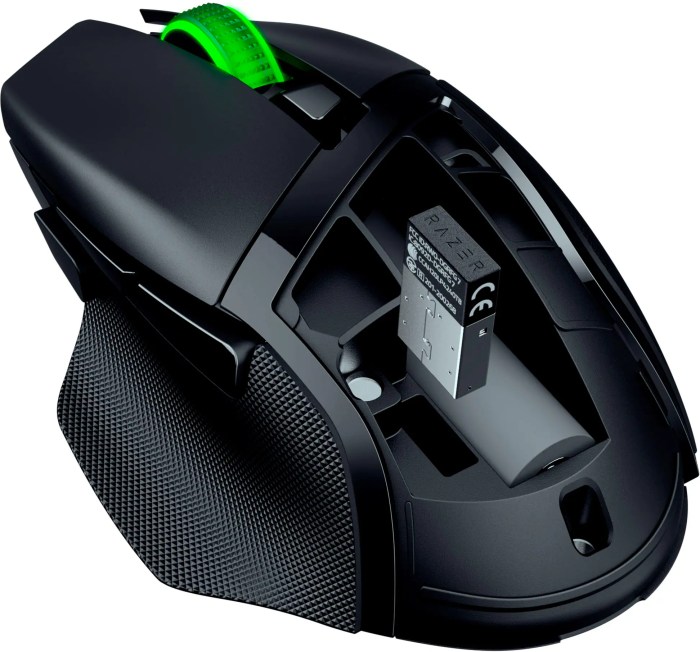
DPI, or Dots Per Inch, is a crucial specification for computer mice, directly impacting how the cursor moves across your screen. Understanding DPI is fundamental to optimizing your mouse’s performance for various tasks, from precise graphic design to fast-paced gaming. This exploration delves into the mechanics of DPI, its influence on cursor control, and how to select the optimal setting for your needs.
Influence of DPI on Cursor Speed and Precision
DPI dictates the sensitivity of a mouse, determining how far the cursor travels on the screen relative to the physical movement of the mouse. A higher DPI setting means the cursor moves a greater distance with the same physical mouse movement, resulting in increased cursor speed. Conversely, a lower DPI setting leads to slower cursor movement and greater precision. The core principle revolves around how the mouse sensor interprets physical movement.
The number of DPI represents the number of counts the mouse sensor registers per inch of movement. For instance, a 1600 DPI mouse registers 1600 counts for every inch it travels. These counts are then translated into cursor movement on the screen. The impact of DPI varies considerably across different applications. In gaming, where rapid reactions are critical, higher DPI settings allow for faster aiming and quicker screen navigation. Games like first-person shooters (FPS) benefit from high DPI settings to swiftly turn and track opponents. However, excessively high DPI can lead to a loss of precision, making it difficult to make fine adjustments. Strategy games, on the other hand, might benefit from a lower DPI setting for more controlled cursor movements when selecting units or issuing commands.
Graphic design requires meticulous precision, making lower DPI settings often preferable. Designers need to make minute adjustments to their cursor position for tasks like detailed image editing and precise selection of objects. In general use, the ideal DPI setting is a balance between speed and precision. A moderate DPI setting provides a comfortable experience for web browsing, document editing, and general computer navigation. Ultimately, the best DPI setting depends on individual preferences, the type of task being performed, and the specific game or application being used. Experimentation is often necessary to find the sweet spot that maximizes both speed and accuracy.
Advantages and Disadvantages of High and Low DPI Settings
The optimal DPI setting is subjective and depends on the intended use. The following table provides a comparison of the advantages and disadvantages of high and low DPI settings for various tasks.
| Task | High DPI (e.g., 3200+ DPI) | Low DPI (e.g., 400-800 DPI) | Considerations |
|---|---|---|---|
| Gaming (FPS) |
|
|
|
| Graphic Design |
|
|
|
| General Use |
|
|
|
Subjective Impact of DPI on Mouse Feel
The feel of a mouse, and how it translates cursor movement, is highly subjective and depends on individual preferences and the specific application. A higher DPI setting will often feel “twitchier” or more sensitive, requiring less physical movement to traverse the screen. This can be advantageous in fast-paced gaming, allowing for rapid turns and quick reactions.
Conversely, a lower DPI setting will feel more deliberate and controlled, demanding more physical movement for the same cursor displacement. This can be beneficial for precision tasks like graphic design, where fine adjustments are critical. The subjective experience is further influenced by factors such as mouse weight, the surface it is used on, and the user’s hand size and grip style. Some users prefer a heavier mouse for a more grounded feel, while others prefer a lighter one for quicker movements. The mouse pad’s surface material can also impact the feel, with different surfaces offering varying degrees of friction and smoothness. Ultimately, the “best” DPI setting and the associated feel are those that best suit the user’s needs and preferences.
Methods for Discovering Your Mouse DPI Setting Across Various Operating Systems focuses on compatibility.
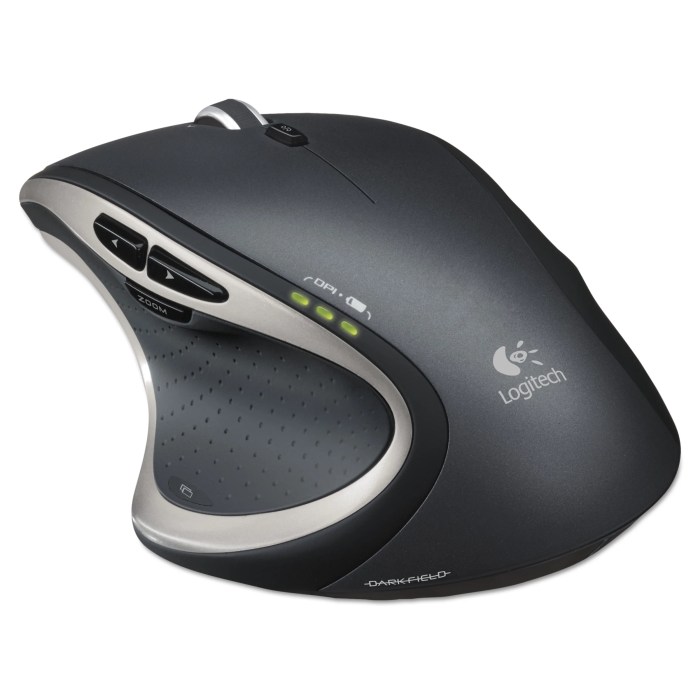
Understanding your mouse’s DPI is crucial for optimizing your computer’s usability, whether you’re navigating spreadsheets, editing photos, or dominating in competitive gaming. Compatibility across different operating systems necessitates varying methods for determining your mouse’s DPI. This section Artikels the procedures for checking your mouse DPI on Windows, macOS, and Linux, ensuring you can fine-tune your mouse sensitivity regardless of your operating system.
Checking Mouse DPI in Windows
Windows offers several straightforward methods for discovering your mouse DPI setting. These approaches range from utilizing the built-in settings panel to leveraging third-party software, each providing a different level of detail and control.
To check the mouse DPI within Windows settings:
* Navigate to the “Settings” app, which can be accessed through the Start menu or by pressing the Windows key + I.
* Click on “Devices” and then select “Mouse.”
* In the mouse settings, look for an option related to “Pointer Speed” or “Cursor Speed.” Adjusting this slider changes the mouse sensitivity, which indirectly relates to the DPI. However, Windows settings generally don’t directly display the DPI value.
For a more precise DPI reading and additional features, consider using third-party software:
* Many gaming mouse manufacturers provide proprietary software that allows users to configure and view their mouse’s DPI. Examples include Logitech G HUB, Razer Synapse, and Corsair iCUE. These applications typically offer a user-friendly interface to adjust DPI settings and often include pre-defined DPI profiles for different gaming scenarios.
* If your mouse lacks manufacturer-specific software, or if you prefer a more universal approach, there are several third-party utilities available. Some popular choices include DPI Analyzer and Mouse DPI Checker. These programs typically detect the mouse model and allow you to test and determine the DPI value by moving the mouse across a specific distance and measuring the cursor’s movement. These tools may also provide options to calculate effective DPI based on in-game settings.
Using manufacturer software provides the most direct and accurate DPI information. If such software is unavailable, third-party utilities offer a reliable alternative for determining your mouse’s DPI.
Utilizing Mouse Software to Reveal and Adjust DPI Settings explores the control software provides.

Proprietary mouse software, provided by manufacturers such as Logitech, Razer, and SteelSeries, offers a powerful means to understand and manipulate mouse DPI settings. These software suites go beyond simple DPI display, providing a granular level of control over mouse sensitivity, button assignments, and other performance-related aspects. This capability is crucial for gamers, designers, and anyone seeking to optimize their mouse for specific tasks and preferences.
Software Interface for DPI Management
The primary function of mouse software is to provide a user-friendly interface for customizing the mouse. This typically includes a dedicated section for DPI adjustments. Users can often view their current DPI setting and choose from a range of preset DPI levels or define their own custom DPI values.
For instance, the Logitech G HUB software presents a clean and intuitive interface. A central DPI setting is displayed prominently, usually with a slider or a series of pre-defined DPI stages. Clicking on this setting opens up further customization options.
Image Description: The Logitech G HUB software interface is displayed. The software’s main window showcases a prominent DPI setting slider, allowing users to quickly adjust the sensitivity. Below the slider, there are options for assigning different DPI settings to different profiles and saving the settings. Further customization options are visible on the left-hand side.
Similarly, Razer Synapse, another popular software, features a similar design. The software often uses a visual representation, like a DPI stage indicator, showing the different DPI levels. Users can easily switch between them or create new ones.
Image Description: The Razer Synapse software interface is displayed. The main window shows a DPI setting, which is presented as a visual representation of different DPI stages. There is also a slider to adjust the DPI settings. The software allows users to create different profiles and assign different DPI settings to each of them.
These software packages usually also allow users to create and save multiple profiles, each with unique DPI settings tailored for specific games or applications. Furthermore, the software often provides detailed information about the mouse’s model, firmware version, and other relevant technical details.
DPI Adjustment and Customization Comparison
Mouse software programs vary in their features, offering different levels of DPI control and customization. The table below compares the DPI adjustment features and customization options of several popular mouse software programs.
| Software | DPI Adjustment | Customization Options | Profiles | Additional Features |
|---|---|---|---|---|
| Logitech G HUB | Slider, Predefined steps, Customizable DPI levels | Sensitivity settings (X/Y axis), Polling rate, Acceleration | Multiple profiles with application-specific profiles | Macro creation, RGB lighting control, Onboard memory for profiles |
| Razer Synapse | Slider, Predefined steps, Customizable DPI levels | Sensitivity settings (X/Y axis), Polling rate, Acceleration | Multiple profiles with application-specific profiles | Macro creation, RGB lighting control, Razer Chroma integration |
| SteelSeries Engine | Slider, Predefined steps, Customizable DPI levels | Sensitivity settings (X/Y axis), Angle snapping, Acceleration | Multiple profiles with application-specific profiles | Macro creation, RGB lighting control, Device synchronization |
| Corsair iCUE | Slider, Predefined steps, Customizable DPI levels | Sensitivity settings (X/Y axis), Angle snapping, Acceleration | Multiple profiles with application-specific profiles | Macro creation, RGB lighting control, Hardware monitoring |
Important Factors for DPI Adjustment
Adjusting DPI settings effectively requires careful consideration. Several factors play a crucial role in optimizing the mouse experience.
- Understanding DPI Range: The range of DPI settings offered by the mouse and software determines the sensitivity levels available. Some mice offer a wider range, providing greater precision for different tasks.
- Experimentation and Testing: Determining the ideal DPI setting requires experimentation. Trying different settings in various applications and games helps identify the optimal balance between speed and accuracy.
- Importance of Profiles: Utilizing profiles allows users to save and switch between different DPI configurations for various applications or games. This feature eliminates the need to manually adjust settings each time a new application is launched.
- Saving Preferences: Always save your preferred DPI settings within your chosen profile. This ensures your custom settings are retained and easily accessible.
- X/Y Axis Customization: Some software allows separate DPI adjustments for the X and Y axes, allowing for finer control over horizontal and vertical mouse movement. This is particularly useful for tasks like photo editing or gaming.
Physical Methods to Ascertain Mouse DPI Without Software explores alternative approaches.
For those without access to software or the internet, determining mouse DPI necessitates physical methods. These techniques, while less precise than software-based approaches, provide a reasonable estimate of the mouse’s sensitivity. They rely on measuring physical movement and relating it to cursor displacement on a screen.
Measuring Mouse Movement to Estimate DPI
This method involves measuring how far the mouse travels physically and relating that to cursor movement on the screen. Accuracy depends on precise measurements and a steady hand.
To perform this measurement, you’ll need:
- A ruler with millimeter markings.
- A flat, stable surface.
- A computer with the mouse connected.
- A text editor or drawing program.
Here’s the process:
- Place the ruler on the flat surface.
- Position the mouse at a starting point on the ruler.
- Carefully move the mouse a specific distance along the ruler, such as 25.4 mm (1 inch).
- Observe the cursor movement on the screen.
- In a text editor or drawing program, draw a straight line to represent the cursor movement.
- Measure the length of the line in millimeters or pixels.
- Calculate the DPI using the following formula:
DPI = (Cursor Movement in Pixels) / (Mouse Movement in Inches)
For example, if the mouse moves 1 inch and the cursor moves 1000 pixels, the DPI is approximately 1000. If the mouse moved 2 inches and the cursor moved 2000 pixels, the DPI is also 1000.
Utilizing Online DPI Calculators
Online DPI calculators offer a convenient way to estimate DPI, requiring only basic information about mouse movement and screen resolution. They are readily accessible and eliminate the need for manual calculations.
To use an online DPI calculator, you’ll need:
- An online DPI calculator (search for “DPI calculator” online).
- The screen resolution of your monitor (e.g., 1920×1080).
- A method to measure cursor movement on the screen.
Here’s how to use the calculator:
- Find a suitable online DPI calculator.
- Enter your screen resolution.
- Move your mouse across the screen from one edge to the other.
- Measure the distance the mouse traveled.
- Enter the mouse movement distance.
- The calculator will provide an estimated DPI.
For instance, if you have a 1920×1080 monitor and moving the mouse from one side to the other covers 100 mm, the calculator will estimate the DPI. The accuracy depends on the precision of the mouse movement measurement. This method provides a more convenient estimate compared to manual calculations, especially when dealing with different screen resolutions.
Limitations of Physical DPI Estimation Methods
Physical DPI estimation methods are inherently less accurate than software-based solutions. Several factors can introduce errors, making the estimated DPI unreliable.
Here are some limitations:
- Measurement Inaccuracies: Human error in measuring mouse movement or cursor displacement introduces inaccuracies. Even small measurement errors can significantly affect the DPI calculation.
- Surface Variations: The surface on which the mouse is used can impact tracking. Different mousepads or even the type of desk surface can affect the sensor’s performance.
- Cursor Acceleration: Operating systems often include cursor acceleration, which dynamically adjusts cursor speed based on mouse movement speed. This makes the relationship between physical mouse movement and cursor movement non-linear, making accurate DPI estimation difficult.
For example, imagine a user trying to estimate DPI using a ruler on a textured mousepad. If the mousepad’s texture interferes with the sensor, the cursor movement might not accurately reflect the physical distance traveled by the mouse, leading to an inaccurate DPI reading. This is especially true if the user’s mouse has a lower-quality sensor, which is more susceptible to tracking inconsistencies.
Troubleshooting DPI Issues and Common Problems offers solutions to potential difficulties.
Encountering problems with mouse DPI settings can be frustrating, leading to a subpar computing experience. Inconsistent cursor movement, sluggish response times, or unexpected behavior in games are all indicators of potential DPI-related issues. Understanding the common problems and how to address them is crucial for ensuring smooth and accurate mouse performance.
Common DPI-Related Problems
Users often grapple with several recurring issues stemming from incorrect or poorly configured DPI settings. These problems can manifest in various ways, impacting productivity and gaming performance.
* Inconsistent Cursor Movement: The cursor might feel erratic, jumping around the screen unpredictably, making precise movements difficult. This often happens when the DPI setting is too high for the display resolution or the mouse surface.
* Sluggish or Lagging Feel: Conversely, the cursor may feel slow and unresponsive, delaying actions and hindering responsiveness, especially in fast-paced environments like gaming. A low DPI setting or hardware limitations can cause this.
* Unwanted Sensitivity Changes: Sudden shifts in cursor speed, especially after software updates or driver installations, can disrupt workflow and gameplay. This is often caused by conflicts between mouse software and operating system settings.
* Software Conflicts: Compatibility issues between mouse software and other applications, including games, can result in unpredictable DPI behavior. Certain programs might override or interfere with the user-defined DPI settings.
* Hardware Malfunctions: Physical damage to the mouse sensor or internal components can also cause DPI-related problems. Dirt, dust, or a malfunctioning sensor can lead to erratic cursor movement or a complete lack of responsiveness.
Step-by-Step Guide to Troubleshooting DPI-Related Issues
Addressing DPI problems often involves a systematic approach to identify and resolve the root cause. The following steps provide a structured guide for troubleshooting:
* Check Mouse Drivers: Ensure the mouse drivers are up-to-date. Outdated drivers can cause compatibility issues and prevent proper DPI functionality. Visit the manufacturer’s website or use the operating system’s device manager to update or reinstall the drivers.
* Verify Software Conflicts: Close any unnecessary background applications that might be interfering with the mouse software. Some programs can override DPI settings or cause conflicts, especially those related to gaming or graphics.
* Inspect Mouse Surface: Make sure the mouse is used on a clean, consistent surface. Dust, dirt, or uneven surfaces can interfere with the mouse sensor, leading to erratic cursor movement. Consider using a mousepad for optimal performance.
* Test DPI Settings: Experiment with different DPI settings using the mouse software or operating system settings. Gradually increase or decrease the DPI to find the setting that best suits your needs and display resolution.
* Check Hardware: Inspect the mouse for any physical damage or debris that might be affecting its performance. Clean the sensor area and ensure the mouse cable is securely connected. If the problems persist, consider testing the mouse on another computer to rule out hardware issues.
* Operating System Settings: Check the operating system’s mouse settings. Ensure the pointer speed and acceleration settings are configured to complement the selected DPI setting. Adjust these settings to fine-tune cursor movement.
* Software Reinstallation: If all else fails, try uninstalling and reinstalling the mouse software. This can resolve corrupted files or software conflicts that might be causing the DPI issues.
* For FPS games, use a lower DPI (e.g., 400-800) for increased precision.
* For general desktop use, a moderate DPI (e.g., 800-1600) often provides a good balance between speed and accuracy.
* For MOBA games, experiment with DPI settings that allow for quick camera movements while maintaining accuracy.
Last Recap
In conclusion, mastering how to check mouse DPI empowers you to fine-tune your cursor’s behavior for optimal performance. Whether you’re a gamer seeking pinpoint accuracy, a designer demanding precise control, or a casual user simply looking for a smoother experience, understanding and adjusting your DPI settings is essential. By utilizing the methods Artikeld in this guide, you can unlock the full potential of your mouse and elevate your digital experience.
